Showing posts with label Design. Show all posts

Free GIF Animator Software To Creat And Edit Animated GIFS

Cyotek Gif Animator beta, is a free gif animator software. Using it you can create, edit, and save animated gifs. It is powerful gif animator software that lets you extract frames, edit each single frame, flip frames, optimize frame colours for reducing gif size, add more new frames and fill them with new images, change animation dimensions and image offsets, control the looping, duplicate frames, rearrange frames, delete frames, and do lot more.

The freeware supports a huge set file formats. The major ones includes: JPG, BMP, TIFF, PNG, ICO, JNG, PBM, RAS, TGA, PSD, JP2, and lot more. The freeware can also nicely integrate with other image editing software, installed in your PC, and helps you create professional looking animated gifs.
Create-edit animated gif using this free Gif animator software:

The freeware is still in its beta version, and is free only in beta version. It is a lightweight software and doesn’t contain any 3rd party adware. Installation is just like installing a usual software. It has got an easy to use interface, all the buttons and menus are pretty self-explanatory.

On launching the software, you’ll get an interface that tells lot about the freeware. The whole software is divided into two panes; covering most of the interface, and buttons, menus at the top. One of the pane is for the frames of the animated gif, and the other is for changing the attributes of animation like: loop number, animation dimensions, image offset, frame speed etc. Either create a new animated Gif using images, from the scratch or, open a pre-existing animated gif using the New and Open tools.
On opening a pre-existing gif, the software automatically extracts each single frame. You can edit each single frame, using the tool bar tools. Or you can simply export a frame into another Photo editing software installed in your PC. Simply right-click on the desired frame, you’ll get a context menu, choose Edit image option. Using this same context menu you can export a frame and save it to any of the mentioned file formats. Besides that you can add frame, replace image, duplicate image, delete frame, move frame up or down etc.
The optimize feature, is a handy feature of freeware. It lets you reduce the frame size, and ultimately the whole animation size. Using it you can lower the colour count of the frame or desaturate it. One more similar feature of this freeware is: you can view and define a new global palette for all the frames of the gif. This also has similar effect as that of Optimize feature. To do that use the Create Global Palette option under Project menu.
There are other more good features for advanced users. You can alter the freeware settings using the Options feature under Tools menu. Use this Options feature to enable save backups, automatically open with last opened document, assign custom photo editor etc.
Once done with everything, you can preview the animation by clicking on respective button at the interface, before exporting file as an animated Gif file.

Key features of this free Gif animator software:
  • Completely free.
  • Create, edit, and save animated gifs.
  • Extract frames, and edit each single frame.
  • Add new photo frames, delete, duplicate, rearrange frames.
  • Change animation speed, dimensions, loops etc.
  • Lightweight.
  • Easy to use interface.
Get Cyotek Gif Animator beta here.
Continue Reading

How To Use Photoshop Filters In Paint.Net

This tutorial explains how to use Photoshop filters in Paint.NET.

Natively, Paint.NET doesn’t support feature to apply Photoshop filters to enhance photos. However, there is a fantastic Paint.NET plugin, called Paint.NET 8bf filter plugin, which can host Adobe PhotoShop compatible filters (*.8bf files) to apply them on images. With this plugin, Paint.NET becomes an even more powerful image editor. You don’t need to use PhotoShop if you especially use it for applying the stunning filters in photos.

In the screenshot below, you can see the window of this plugin where it shows Photoshop filters and the option to Run the selected filter.
Now let’s see how you can use Photoshop filters in Paint.NET.

Install Paint.NET 8bf filter plugin to use Photoshop Filters in Paint.NET:

Use the steps mentioned below to install this plugin and use Photoshop filters:

Step 1: Using this link, you can download the zip archive of this plugin.
Step 2: Extract that archive and you will find PSFilterPdn.dll and PSFilterShim files. Copy those files and paste them in Effects folder of Paint.NET’s installation directory.
Step 3: You also need to copy and paste your Photoshop filter files (8bf) to the same directory. If you don’t have any, then of course you need to download those files first.
Step 4: Launch Paint.NET and add an image. After this, click on Effects menu. You will find 8bf Filter… option. Click on that option and window of Paint.NET 8bf filter plugin will open.
Step 5: Filters tab will show the list of all added filters. You can select any filter and click on Run Filter button. It will launch that particular filter.
That’s it, guys! Now you can show your skills to use the filter and turn the photo into a beautiful masterpiece.

Get Paint.NET 8bf filter plugin for free. Here

This tutorial explains how to make mosaic in Paint.NET.
Continue Reading

Powerful And Feature Loaded Image Editing Software: PIXLR

Pixlr is an incredibly powerful and feature loaded free image editing software. Simple and intuitive, this beast of an application lets you fine tune your digital images to the absolute maximum, thanks to the truckload of tools that it comes built-in with. Pixlr consists all of the standard image editing features (auto adjust, crop/resize, exposure control, red-eye reduction), and then some more. Apart from that, it can prettify your images using a large variety of filters, overlay masks, borders, stickers, and a whole lot of other goodies. You can also add text to your images. Pixlr is a lightweight application, and supports all common image formats (JPG, PNG, GIF, BMP and even PSD). Pixlr has been available as a web based app for quite a while. So how exactly is the desktop version of this thing? Time to find out!

Pixlr: Installation And Primary User Interface

Installing Pixlr is a fairly routine affair, akin to installing any other software application. All you have to do is download the software, and install it. Here’s how Pixlr’s primary user interface looks like:
As illustrated by the above screenshot, Pixlr has an easy to use and straightforward interface. Majority of the UI just consists of the preview area, where the images to be edited show up. All of the primary editing options sit on the left, stacked in the form of a vertical bar. Clicking each option reveals further sub-options (e.g. The Fast option includes standard editing features like resize, auto-contrast, and more). Some of these expand further to reveal even more options. There’s also a simple menu bar up top that can be used to access (most) of the editing options in a bit more standard way. A status bar, having usual social sharing options and some other stuff sits at the bottom, completing the user interface. Pretty standard stuff!

How To Jazz Up Your Images With Pixlr Image Editing Software?

Using Pixlr to edit your images and add amazing effects to them is ridiculously easy. All you have to do is load up the image you want to edit, make your modification(s) and save the changes. Though it’s not possible to discuss each and every feature available in Pixlr due to the sheer number, but they’re all the same essentially. Here’s a little step by step process anyway, to get you started with this amazing image editing application.

Step 1: Load the image that you want to edit in Pixlr using File > Open. A preview of the image is rendered in the preview area as soon as it’s loaded.

Step 2: Now, the next step is obviously to make the changes to the images. To do so, select one of the primary options, and then select a sub-option. For example, you can click on refine, and then choose from one of the options: color, contrast, blur, sharpen, smooth or double exposure. Once selected, you can also fine tune the way the editing operation is applied via sliders. Check out the screenshot below:
As illustrated by the above screenshot, the applied editing effects are rendered to the image preview in real-time, so that you can easily see how the image will look after editing. Pretty awesome, right?

Step 3: That’s all there’s to it! Once you’ve made all the changes that you want to the image, simply use the Save as option from the File menu to commit the changes. Simple as pie!

Pixlr: Summary Of Features

The editing features available in Pixlr are organized into categories for easy navigation. These are briefly summarized below:
  • Fast: Consists of standard editing operations such as crop, straighten, resize, auto-fix, heal, red-eye correction, focal, and more.
  • Refine: Has options to tinker with color, contrast, exposure etc.
  • Effect: Apply a variety of cool color filters to give a whole new touch to your images.
  • Overlay: Choose from a handy selection of overlays such as bokeh, color, and more.
  • Border: Add awesome looking borders/frames to your images.
  • Stylize: Add effects like dapple, cross-hatching, sketch etc.
  • Stickers: Make your images stand out by adding stickers and tattoos.
  • Type: Make your pictures say even more by adding text to them.
Get Pixlr for Desktop Here.
Continue Reading

Software To Bulk Download Google Books In PDF, PNG, JPG

EDS Google Books Downloader is a free software that supports bulk download feature. Although you can also find other similar software over the web, but none of them support bulk download for Google books. Moreover, you need to manually add the URL of Google book that you want to download. This software is a step ahead and has multiple interesting features.

Apart from bulk downloading Google books, it lets you search for a particular book using the keywords. In search results, it shows cover art thumbnail, book title, and option to download books. You won’t be able to select multiple books, but it provides download button for each individual book. So you just need to scroll down the search results and/or use next button and tap on download buttons.
The screenshot above shows search results for Google books on its interface.

How To Bulk Download Books using This Free Google Books Downloader Software?

These are the very simple steps to use this Google Books Downloader software:

  • Step 1: Grab its setup file with the help of this link. Run the installation process and then open its UI.
  • Step 2: You will find two main tabs on its interface that are self-explanatory: Search Results and Downloads. Use the search box and results will be visible quickly.
For every single search result, a download button, book title, cover art thumbnail, options to select output as PDF, JPG, or PNG, and Preview icon to open the source location of book are provided.


  • Step 3: Select the output format and click on Download button for a Google book. It will prompt you to select the output location to save the book. In a similar way, you can download more books. Using Downloads tab, you can see the download progress for each individual book.


When the download progress is finished, you can jump to the output location and see that every single Google book is saved in a different folder.

Get this software for free here
Continue Reading

Home Design Apps For Android

Here’s a list of 3 home design apps for Android which you can use to create mock ups of your dream house, plan redecoration’s and more. Seeing how we’re talking about tablets and smartphones here, you can’t really expect the kind of advanced functionality and usability that can be found in desktop applications, but the apps I mentioned do come very close to being just as good as desktop software of this sort.

Let’s see what exactly it is that they can offer.

Home Design 3D Outdoor/Garden
Home design isn’t just about making everything the way you like it within the walls of your home, don’t forget about the outside, and that’s exactly what Home Design 3D Outdoor/Garden focuses on.

With the help of this app, you’ll be able to create a design of the backyard and the front of the house using hundreds of items and building types ranging from simple table sets to full on gazebos, see image above. Unfortunately, the same kind of freemium model is applied here like the one that can be found in the indoor version of Home Design 3D, seeing how the same developer is behind both of the apps. Still, app is fully functional apart from losing the save feature after 2 hours, but screenshots help with that, at least they did the trick for me.


Planner 5D
Planner 5D is a very advanced home design app for Android where you get a large database of all kinds of furniture in lots of different variations that you can use to decorate your rooms.

Since the app has a lot to offer it also requires a lot of storage space, close to 250MB. Four demo designs are available by default to help you familiarize yourself with the app. Online, in the Planner 5D gallery on their website, you can find designs shared by others or share your own creations. 2D and 3D view modes are available. Move around by holding down a screen tap, zoom with pinching, the usual. An optional paying subscription gives you access to an additional 3000 items from the paid database offered by Planner 5D for more detailed customizations of the designs that you’re creating.


Home Design 3D
Before we delve into what exactly it is that Home Design 3D has to offer, keep in mind that the app works on a freemium basis. What that means in case of this app is that for 2 hours after installation you have full functionality. After the 2 hours are up the ability to save designs is taken away, but you can still create designs and then take screenshots to share them with others.

Other than the previously mentioned limitations app works pretty much just like Planner 5D does, only the interface is a little bit revamped. Furniture selection is on the left. 2D and 3D modes are available. Room layout and furniture designs can be changed in both 2D and 3D. Furniture is placed into categories, and there’s a find tool to help you find the furniture that you need more easily.

Continue Reading

How To Make Mosaic In PAINT.NET

This tutorial explains how to make mosaic in Paint.NET.

We all know Paint.NET as one of the best free image editor software. However, it can also be used to generate the mosaic. Sounds pretty interesting, right? Instead of using the small images, which is required by mosaic maker software, Paint.NET uses boxes to generate the mosaic. So you don’t need tons of images to prepare the mosaic of an image.

For generating the mosaic in Paint.NET, you will need an 8bf filter (Photoshop filter) plugin, and a Paint.NET plugin that can host that filter. To make it easy for you, I have added the link of both tools in this tutorial.

The screenshot below shows the interface of the filter using which you can create mosaic in Paint.NET.

So let’s find out how to generate the mosaic from boxes in Paint.NET.

How To Make Mosaic in Paint.NET?

Here are the steps that you need to perform to make mosaic in Paint.NET:

Step 1: First of all, you have to download a plugin that can host or run Photoshop filters (8bf) in Paint.NET. Here is the link of 8bf filter plugin of Paint.NET’s zip file. Download the file and extract it in a folder.

Step 2: After extracting the zip file, you need to copy and paste two files, PSFilterPdn.dll and PSFilterShim files, in Effects folder of Paint.NET.

Step 3: Use this link to download the zip file of 8bf filter, called Box Fitting. This is the filter that will help you to make mosaic from boxes in Paint.NET. Extract the zip file and copy paste this filter to the same Effects directory.

Step 4: Now open Paint.NET → insert an image → Click Effects menu → and you will see 8bf Filter option.

Step 5: Click that option and a small window of Paint.NET 8bf filter plugin will open in front of you. In that window, you will find Box Fitting filter added by you. Select that filter and tap on Run Filter button.


Step 6: Window of Box Fitting filter comes with multiple options that you need to adjust to make the mosaic as good as possible. You can set the number of boxes, seeds, size of boxes, and can also preview the mosaic in real-time. Apart from this, you also have the option to Multiply the Render to add finishing in the mosaic.

Finally, you can press OK button to apply the changes to the photo. It may take a few seconds to successfully apply the changes. After this, you can close the window of 8bf filter plugin using OK button and the mosaic will be in front of you. If you like the mosaic, save it, or open the same window of 8bf filter plugin to do the changes.
Continue Reading

Best Free Image And Photo Editing Software: PAINT.NET

Paint.NET is free image and photo editing software. It has a simple, intuitive, and innovative user interface; yet provides most of the advanced functions available in expensive image editing software. This makes it the best powerful yet simple image and photo editor tool.
I personally use this software a lot (to create most of the images for this website), and just love it. Apart from the fact that it is a completely free image editing tool, here are some of the features that I like most about it:

Unlimited Undo:
I am not an advanced user, so keep on making lots of mistakes in my edits. Paint.net provides unlimited undo, and  redo. So, no matter what mess I create, I can always revert it back to any step of my image editing.

Simple and Intuitive Interface:
The interface is really easy to use. It provides a tabbed document display, and provides a live thumbnail of all the images. All other functionalities are well placed, and can be easily found.

Layers:
It provides options to create rich layers, something available only in expensive image editors.

Special Effects:
It provides lot of options for special effects, including, blurring, sharpening, red-eye removal, distortion, noise, and embossing are included. Also provides unique 3D Rotate/Zoom effect that makes it very easy to add perspective and tilting. It also lets you tweak an image’s brightness, contrast, hue, saturation, curves, and levels.

Powerful Tools:
It provides some really powerful tools for creating shapes, Gradient Tool, Magic wand for selecting regions of similar color, and the Clone Stamp for copying or erasing portions of an image.

All these features make it the Best Free Image Editor.

Download Paint.Net Free: Download
Continue Reading

Websites To Crop GIF Images Free

These free websites let you crop the animated GIF images without changing them to still GIF format. So, when you want to extract only a particular part of your GIF, use that part as avatar, or just need to cut a particular portion of GIF image for sharing, these websites are handy.

Apart from cropping the GIF images, most of these websites are also useful to edit other format images, resize the GIF, etc. Let’s have a look at these free websites.


Freeware GIF Resizer (or GIFResizer) is also handy to crop your animated GIF as well as resize it. It lets you preview the output GIF before downloading to PC. After uploading the GIF, it provides an option to crop the GIF or set height and width to resize it.

Another interesting feature available here is that you can download a zip archive to get all the frames of your animated GIF. Frames are downloaded as PNG image. This website is really simple yet handy to crop the GIF, resize, and extract frames.

Watermark.ws is the best website in this list to crop GIF images and perform editing in GIF images. You will be able to rotate your GIF image,  crop, resize, and flip it. Apart from this, it comes with a feature to add text watermark to your GIF image. You can also choose any available font, set its opacity, size, rotation, and position. Moreover, you can also add a logo on your GIF image that can be used as an image watermark. Opacity, scaling, and rotation can also be adjusted by you for image watermark.

This handy website also lets you compress your GIF image to reduce its size. You can also change its color to Grayscale or Sepia. So, a lot of interesting features are available in this website that you can apply on your animated GIF. You can also upload other supported format images and edit those images.

To use this website, you need to create a free account. After this, it provides 10 MB storage space in this free subscription to upload images and edit them. When you are running out of storage space, you can also delete any uploaded image.

GIFmagic is one of the best website in this list and is specially designed to process animated GIFs. Apart from cropping the GIF image, you can also add comment to it and set number of loops. So if your GIF is in endless looping mode, you can set it to loop up to a definite interval.

This website also lets you resize your GIF, rotate it, flip it, and make it transparent. So, a lot of options are available to edit your animated GIF. However, during my testing, some of its features didn’t work, like it failed to add transparency, flip the GIF, etc. Still, it can easily crop your GIF, and add other changes with its handy features. Uploaded GIF remains for 3 hours on servers.

Online Image Editor (OIE) is a great website to crop animated GIF available on your PC or available online. You can also preview the cropped GIF before saving it to PC, which makes it more interesting. Apart from cropping the animated GIFs, you can resize it, add text to it, rotate, flip, add border, and more. So, it is an all in one solution to edit your animated GIF images.

Apart from editing the GIFs, you can also optimize your GIF to reduce the size of it. It can also split frames of GIF image and lets you remove unwanted frames from GIF.

After uploading a GIF image, you need to access Basics and Wizards tabs available in this website to edit your GIF image.


This is the last website in this list and handy to crop animated GIF. You can also use it convert GIF to JPG and PNG format. You can also edit your GIF to change it to greyscale, set height n width, add frame (if possible), make it blur, etc. So apart from the main task, it can be used to perform some basic editing to your GIF.

You can also use this website to crop and resize other format images. So, it is not limited to process animated GIFs only. Your input image is also deleted automatically, so you don’t have to worry about the original image.


*You can choose any of these and crop your animated GIFs.
Continue Reading

FREE RAW PHOTO EDITOR SOFTWARE

These image files are supported by many digital equipments, say digital camera, scanner, etc., and most of the photo editors don’t support these formats. These software will help you to view as well as edit different formats RAW images, like *.nef, *.raw, *.crw, *.rwz, and more. Using these software, you will be able to enhance your unprocessed RAW images, apply effects, crop, resize, and rotate them. Most of these software also let you set output quality when converting the image as jpg file. Let’s have a look at these free RAW photo editor software.

RawTherapee
Apart from this, you can set Exposure level by maintaining the brightness, contrast, saturation, reduce noise from your image, and view exif information. So almost all the features that are possible with above-mentioned software are available in this software as well. After editing the images, you can save them as TIFF, PNG, and JPEG.

RawTherapee is an advanced photo editor in this list and more useful for experts. It comes with a complicated interface with a bunch of tools. You can add multiple RAW images, other format images, and can process any image using its tools. You can flip, rotate image, crop and resize, tag photos, add color labels to images, etc.


Fotor is also helpful to create photo collage using templates or in freestyle mode. Moreover, you can also set custom background color of your photo collage. So it is an all in one image processing software. After editing the images, you can save the images as JPG, BMP, TIFF, and PNG.

Fotor is one of the best photo editors in this list that supports RAW images and other common format images, like JPG, PNG, BMP, etc. It provides batch image convert, rename and resize features. Apart from this, it comes with preset effects to retouch your photos by just using mouse clicks. For any applied effect, you will be able to set the intensity level.

There are many other important features available to use. You can add borders, text to your photos, crop images, rotate and zoom images, compare original and enhanced photo, view exif information of images, etc.

This software also provides presets to crop image and save to PC. Apart from this, you can perform multiple adjustments to enhance the image. You can move sliders to set contrast, tint, contrast, vibrance, temperature, hue, sharpness, etc.

While editing a particular photos, you can also explore metadata information to check the focal length, flash used or not, ISO speed, photo taken date, and more. So this lite version of this software is good enough to perform quick editing and exploring the photo details.

Scarab Darkroom (lite version) is also a good software to edit *.nef format and other RAW images supported by multiple digital cameras. This software is also a good RAW image resizer and converter. You can set custom height/width and save image as tif or jpg format. You need to drag n drop images or the whole folder and it will show thumbnails of RAW images on the bottom part.

There are three main tabs on its interface that makes it easy to work. First tab is used to insert images and view thumbnails of images. Second tab helps to add tasks to process the input images. You can add tasks to change color depth, canvas size of images, enhance focus, edges, resize, rotate, apply watermark, and more.

After applying a task, you can also preview original and output image. Finally, you can jump to the third tab to select output format and convert your raw images.

XnConvert is also a feature-rich image editor and image converter software. It supports around 500 image formats which none of the other software in this list do.

Apart from this, you can also automatically adjust colors of an image in a single-click. Moreover, option to set bluescale, redscale, etc. is also available to retouch your photo.

Other interesting features of this software are: crop and resize image, use preset filters, preview the output image before applying the changes, and save image in any other format. Supported output formats are JPG, PCX, TGA, BMP, PBM, GIF, and more.

Able RAWer is another handy RAW image editor that provides navigation pane to open images directly using its interface. Unique feature of this software is that you can preview original and output image side by side while enhancing or setting the adjustments for contrast, HSV, Gamma correction, sharpness, etc.


Whether you have to retouch your RAW images, resize, rotate, set exposure, etc., these software can come in handy. These all are good software to process RAW images and commonly used image formats.
Continue Reading

Example of Useful Contact Us Pages

When a visitor comes to your website or blog, he is ready to convert into a lead for your business or bounce, it’s as simple as that. As a freelancer or company, your first concern is to attract potential customers by showcasing your portfolio as expressive as possible. The Contact Us page is often regarded as a commonplace element of the website but its role is crucial. A simple contact form makes you reachable and collects valuable leads in an organized way. A few days ago we had an article about creative About Us pages on Desizn Tech. Let’s complete the picture and have a look over 10 inspiring Contact Us pages.

Beautiful design is just the beginning. Contact tabs are centered upon usability and a good amount of information, as you may see below.

Design Sensory

The folks at Design Sensory are pretty keen on the value of words. Right beside the contact form they placed a motivational paragraph so that you will know you do the right thing when contacting them. The physical address and phone number of the company is relevant for their public so you may find these details here too.

Vebbu

The placement matters as much as the contact page itself, Vebbu knows that. In fact, it’s not a separate page at all and that makes it distinct. The contact form is placed right at the bottom of the main screen, no scrolling required. A testimonial accompanies the form – subtle but efficient. The entire picture makes a very powerful statement.

Web Media Alliance

Keep it short and simple, this is the principle of the Contact Us page here. However, notice the right side of the screen, with plenty of contact options for you, so the company makes sure it doesn’t lose a customer. The feeling is that they basically have everything included. Need an attorney? Got it too!

Dumbwaiter Design

No waiter has worked on this page for sure, but a professional designer at Dumbwaiter. As you land on the Contact Us section at the bottom of the screen, you have a tiny lightbox announcing you can view a case study, if you are still not convinced they are the best choice. The vintage looking form is another very aesthetic element.

Clay Ant Creative

The guys at Clay Ant are minimalistic, that you can say when seeing their contact tab. Delicate colors, no clutter and the wise allusion “Use the form if you’d like”, all put together make a relaxed atmosphere that’s just irresistible.

Ryan Scherf

To reach the contact form on Ryan’s page you first have to scroll down a gallery with his works, so that you are well informed and quite impressed when you reach the bottom. You surely have your message in mind already.

Mitch Designs

The map on Mitch Designs’ Contact Us page is very innovative. Its benefits are obvious: the visitors won’t get lost, it spares time in doing searches and speaks about how thoughtful the company is. Good kick-off!

Plaveb

Now here is an effective contact form. Not only it requests contact data from the potential customer, but it also asks for budget estimates and project description, so that the company can figure which are the basis for the gig. It spares time in further inquiries and filters vague entries. By the time the visitor has finished filling in the form, he is already half a customer.

Esparkinfo

This company has made wise use of all the space on the Contact Us page. You have their contact form, email address and social media ids, so that you can choose the most convenient way to get in touch with them. Notice the powerful slogans and the call to action button Request a Quote.

LeXolutionIt

The Contact Us page of LeXolutionIt is state of the art in lead generation. This company is very much aware that this page sits at the very bottom of the conversion funnel. You have not one but three call to action buttons, the follow-up perspective is already present in the title of the form (“Request Callback”) and the contact details are noticeable from the first glimpse. Not to mention the bright colors you cannot pass by. 

Source: http://desizntech.info/2012/01/example-of-useful-contact-us-pages/

Continue Reading

How To Create Video Slideshow From Photos

PhotoPixar is a utility software which allows you to create video slideshow from photos. This utility software has got a very simple and easy to understand user interface. Create video slideshow from photos in JPG, BMP and PNG formats. Moreover, you may add your photo files to this software individually or add entire photo folder to this software. Keep in your mind that this software is free for limited period only, and this limited period has not been specified.
If I say more about this software, you can add your favorite music to your video slideshow for making your photo album more attractive. Moreover, you may also choose among several templates, backgrounds and effects which you want to use in your photo album. Add caption to your photo album and Share your Photo album with your friends by uploading it on Facebook with “Upload” button.  Here in this article you will find a small tutorial of “How to create video slideshow from photos”.

Key Features Of This Utility Software That Creates Video Slideshow From Photos :

  • Simple and easy to understand interface.
  • Easy to use.
  • Add your favorite music to video slideshow.
  • Choose between several templates, backgrounds and effects.
  • Create Video slideshow and save it to this software.
  • Upload your photo album to Facebook for sharing it with your friends.
  • Add captions to your video slideshow.
  • Windows utility software.

How To Create Video Slideshow From Photos:

  • Firstly, go on to the homepage of this utility software.
  • Download and install this software.
  • Launch this software.
  • Import photos to this software from your PC by clicking on “Add photos” option with a plus sign.
  • After uploading photos to this software add templates, background and effects by clicking on “Add Templates” button.
  • Click “customize” option which appears on the right side of the screen for choosing effects and background.
  • Add captions by typing the caption in box, select the caption color and click “Add caption” button.
  • Once you are over with all this, click “Publish Album” button.
  • Click Save button for saving it to this software or click upload button for uploading it to your Facebook account.
  • That’s all you need to do for creating a video slideshow from photos.
                                                                                                   Home Page: Click Here
                                                                                                   Download (Free): Click Here
                                                                                                   Works With: Windows 7, Vista or XP
                                                                                                   Free / Paid: Free for Limited Time
Source: ilovefreesoftware.com/28/windows/image-photo/how-to-create-video-slideshow-from-photos.html
Continue Reading

A Showcase of Creative About Us Pages

When you are designing a site for a small company (and especially if you are designing a site for a large company) it can be challenging to get across the personality of the team. Sites exist to serve a function, but people often want to know who works there and what they are like. This is especially true of small startups who want to prove that they are not as corporate and dull as the typical companies in the industry, they often want to show off their quirky, interesting and different style.

This is where the “About Us” page comes in – and it is the perfect way of displaying the team’s personality and style. We have brought together a showcase of creative about us pages that use design and creativity to stand out.

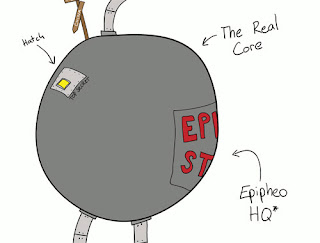
Epipheo Studios


Epipheo Studios have a truly inspired “About Us” page that is not afraid to show off their quirky & weird personality.

Cultured Code


Cultured Code, famous for their task management app “Things”, has always been a company with a very professional image and meticulous design, but with small hand-drawn elements to their site. The About Us page is very much in keeping with this, with caricatures of each team member helping to show off the team’s personalities while still remaining professional.

Airbnb


Airbnb, this website that allows you to rent out your house easily, uses big & bold imagery to show you who the founders are.

GiftRocket


GiftRocket’s website has clearly been very thoughtfully designed and has a very clear visual style – and this is also reflected in the “About Us” page. The page reveals a bit more information on the founders and the business, while looking great and fitting in with the site theme perfectly.

Kyan


Kyan is a web design agency with a reasonably large team , but they have taken the time to provide a bit of information on everyone along with a carousel of the team to help prevent the agency from coming across as just a faceless business.

6Wunderkinder


6Wunderkinder, makers of task management app Wunderlist, have always put a great care and attention into the design of their site & apps, and this is clearly true of the “About Us” page too. High quality imagery and insights into the team help to make them seem more friendly and approachable.

Bread & Pepper


Bread & Pepper is a software company that clearly has a sense of humor. It is shown by the images of their team all obscured by their MacBook Pro’s. A little bit of creativity & humor is a great way of showing off the team’s quirky side, without necessarily being unprofessional.

Lateral


Lateral have decided to inject some creativity into their “About Us” page by having the snapshots of the team follow the mouse cursor around the screen. Try pressing the arrow keys to make the team look in the that direction.

Bump


The guys at Bump have decided to make their About Us page a little bit more interesting by including a big photo of them doing what they do best – using their phones (and presumably using the Bump app) – instead of facing the camera.

Fixel


Creative design agency Fixel use big, bold imagery to show off their team – and also include sliders so that you can mix & match the faces. It’s a fun and interesting display that shows that they are not afraid to be a little bit different.
Are there any About Us pages that you think deserve a mention? Let us know in the comments.
Continue Reading